Theme, Widget & Icon changer
Eco Mobile StylePersonalization
4.71.01K Reviews
- Version
- 1.1.44
- Installs
- 10.00M
- Age Rating
- Everyone
Screenshots
Our Review of Theme, Widget & Icon changer
 Analysis by Appyee
I find customization apps are most useful when they help me make a phone easier to live with, not just prettier to look at. This one focuses on changing the home screen’s visual feel with themes, widgets, and app icons. That makes it appealing if you want a coordinated look without building every element from scratch, though the best results still come from checking how each change fits your actual phone and habits.
Where a polished look can become a fiddly setup
The first practical snag with any home-screen makeover is that a preview and the finished screen are not always the same thing. A widget that looks balanced in a theme may feel cramped beside your own apps, while a set of redesigned icons can make familiar apps take a moment longer to spot. I’d treat each change as a choice to test, not a package I have to apply all at once.
My advice is to begin with one visual layer. Try a theme first, then decide whether widgets or icons solve a problem you still have. That makes it easier to see what is improving the screen and what is merely adding decoration. It also gives you a simple way to back out of a choice you dislike without having to rethink the whole layout.
Widgets deserve particular care because they take up working space as well as adding style. Before choosing one, I’d think about what I want to see at a glance and where my thumb naturally lands. A quote widget can make a screen feel personal, but a practical display may be more useful if I check information repeatedly during the day. The trade-off is not just appearance; it is whether the space earns its place.
Checks I would make before changing the screen
Before setting up a new look, I’d check that the phone is running Android 6.0 or later, the minimum operating system listed for this app, and that there is enough room on the home screen for the elements I want to try. The app is free to download, though in-app purchases range from $0.49 to $99.99 per item, so I’d look carefully at any purchase prompt and decide whether an optional item is worth it before confirming.
I’d also keep my first attempt deliberately simple: choose a theme, inspect the result on the home screen, and only then add a widget or change icons. If an icon style makes an app harder to recognize, I would prioritize familiarity over matching every color. A screen should work when I’m in a hurry, not only when I’m admiring it.
A calmer way to recover from a change you dislike
If the result feels cluttered, I would undo or remove the most recent change first rather than starting over. That gives me a clearer sense of what caused the problem. If a widget does not appear where expected, I’d return to the app’s instructions and check the placement steps on the device instead of repeatedly tapping through unrelated settings.
For an icon mismatch, I’d check the affected app individually before assuming the entire theme has failed. Personalization works best when I’m willing to keep a few original icons or use a less uniform layout; a perfectly matching grid is not worth losing quick recognition. Small adjustments are often more useful than chasing a screen that looks exactly like a preview.
When another part of the phone may be responsible
A home screen is shaped by more than the customization app: the device’s operating system, its existing layout, and the way I use the phone all matter. If a design behaves differently from what I expected, I’d first check whether the change itself was applied and whether the relevant item is visible on the home screen. I would avoid assuming that every visual difference is a fault in the app.
This is also why I would not recommend a full redesign to someone who depends on a carefully memorized layout for work or accessibility. A familiar screen can be more valuable than a fresh one. For those users, changing one low-risk element at a time is a sensible compromise; anyone who wants complete control over every part of the interface may prefer the phone’s built-in options or a more hands-on customization route.
Customization at Your Fingertips
The first thing that struck me about the Theme, Widget & Icon changer is its incredibly user-friendly interface. From the moment you open it, you’re greeted with a clean, intuitive layout that makes navigation a breeze. Whether you’re a tech wizard or someone who just learned how to change their wallpaper, this app has got your back.
An Abundance of Themes
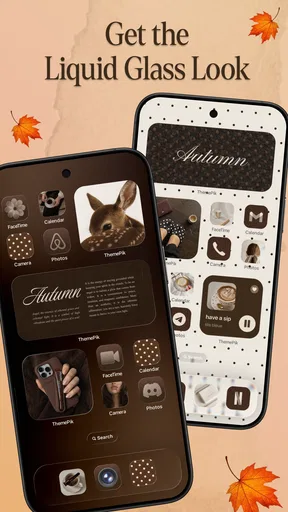
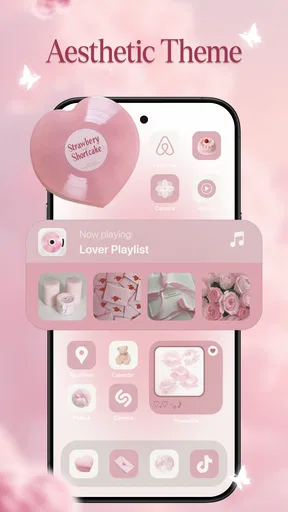
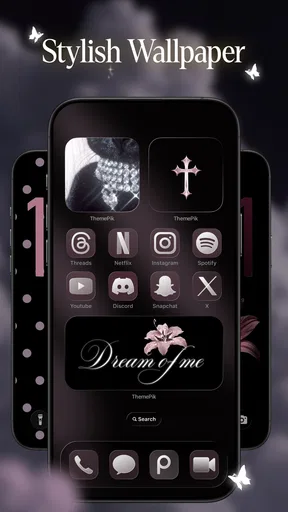
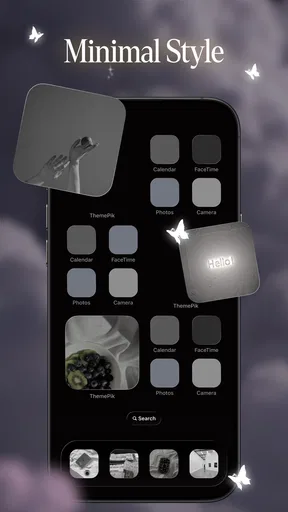
One of the standout features of this app is the vast array of themes available. You can switch from a minimalist aesthetic to something more vibrant and colorful in seconds. The themes are updated regularly, so there’s always something new to try. I particularly loved the seasonal themes that let you match your phone’s look with the time of year.
In practice, I’d use a theme as the starting point for a specific mood rather than as a reason to replace everything on the phone. For example, if I wanted a quieter screen for reading and evening use, I could begin with a restrained look, then keep only the visual changes that make the layout feel calmer. This approach also helps when a theme includes elements I like alongside ones that do not suit my routine.
Widgets Galore
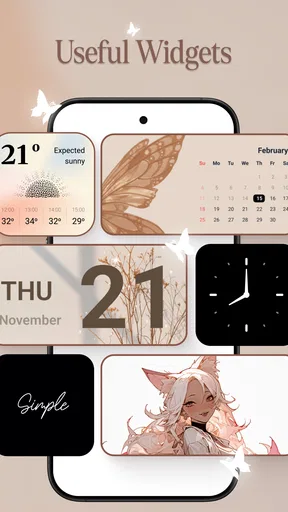
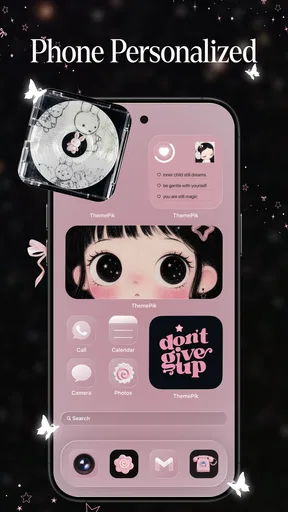
Widgets are where this app truly shines. With so many options to choose from, you can have everything from weather updates to motivational quotes right on your home screen. The customization doesn't stop there; you can tweak the size, color, and even the font of your widgets. It’s almost like having a mini playground on your phone.
A useful way to judge a widget is to ask whether it saves a step. If I already open an app whenever I need a piece of information, a widget is valuable only if it makes that check quicker or more pleasant. I’d also leave enough open space around it to keep the screen readable. A beautiful widget that pushes the apps I use most onto another page may be a poor trade for everyday use.
Icon Overhaul
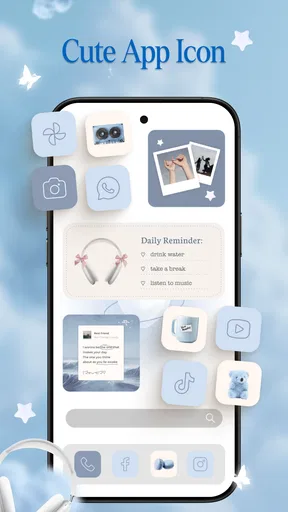
Icons are often overlooked when it comes to customization, but not with this app. It offers a plethora of icon packs that can completely transform the look of your apps. Whether you’re into sleek, modern designs or something more playful, you’ll find an icon set that suits your style. Changing icons is as simple as a few taps, and it totally changes the vibe of your phone.
For a realistic daily setup, I’d change the icons I see most often first, then use the phone normally for a day before deciding whether to continue. That small trial catches an easy-to-miss drawback: icons that match beautifully can be less recognizable at a glance. Keeping a couple of familiar originals is not a failure of the theme; it is a practical way to preserve the shortcuts I rely on.
Easy to Use
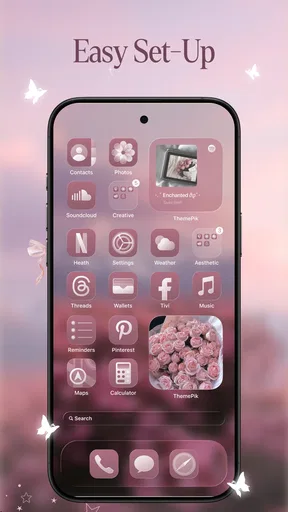
The Theme, Widget & Icon changer is designed to be straightforward and accessible for everyone. You don't need any prior experience with customization apps to make the most out of it. The step-by-step guides make the process seamless, ensuring you get the desired look without any hiccups.
I would still work through those steps slowly rather than tapping through the setup as quickly as possible. When a change does not appear, pausing to identify which part of the process is incomplete is more useful than repeating the whole setup. This is especially helpful for someone trying a widget for the first time: the key question is whether the item has been added and placed as intended, not whether the theme itself needs to be replaced.
Frequent Updates
Another aspect I truly appreciate is the app’s dedication to keeping things fresh. Regular updates mean new themes, widgets, and icons are constantly being added. This not only keeps the app relevant but also provides a sense of excitement every time you open it.
For me, new choices are most useful when they give a screen a different purpose, rather than simply encouraging another round of decoration. A seasonal change can be a low-effort refresh, while a more restrained layout may make sense when I want fewer distractions. I would save a little time to check the finished screen after each refresh, since a new style can shift the balance between appearance and quick access.
Performance and Compatibility
Despite all the customization options, the app runs smoothly without any noticeable lag. It's compatible with a wide range of devices, both Android and iOS, so you don’t have to worry about whether it will work on your phone. I found the app to be quite lightweight, which is a plus for those concerned with storage space.
The version currently available is 1.1.1, and Eco Mobile Style is the developer. The app has a 4.6 average from around 152,000 ratings, with over 10 million installs; those figures suggest that it has reached a broad audience, though they cannot tell me whether a particular theme will suit my own screen. It is rated for Everyone, which is useful context for families considering a personalization app. I’d still make choices based on the phone’s actual layout and the user’s comfort with change, rather than assuming a popular look will be the right one for everyone.
Compared with using only a phone’s built-in wallpaper and display choices, a dedicated personalization app can bring themes, widgets, and icon styling into one place, which is convenient when I want a coordinated result. The trade-off is that a built-in option may feel more direct if I only want to change a background or make a small adjustment. Someone who enjoys carefully tuning every screen detail may prefer a more manual approach, while this app makes more sense for someone who wants visual variety without treating customization as a project.
A Little Something for Everyone
Whether you’re someone who loves to change their phone’s look weekly, or you just want a few tweaks to make it feel more personal, this app has something for everyone. The variety of options ensures that you’ll never run out of ways to make your phone uniquely yours.
I can see it working particularly well for someone who likes refreshing a phone after a season changes, setting up a new device, or making a familiar home screen feel less stale. It is less suitable for a person who wants a completely hands-off experience, is already happy with the built-in appearance controls, or needs a fixed layout that should not move around. A balanced routine is to make one change, live with it through ordinary tasks, and keep only what remains useful after the novelty wears off.
Who should give it a try
For a practical everyday scenario, imagine checking your phone between errands and wanting the screen to feel less crowded. I’d choose a theme that feels visually simple, add only a widget I genuinely check, and leave my most-used apps easy to spot. If that arrangement makes the next few days more comfortable, I’d keep it; if I find myself searching for familiar icons, I’d undo that part rather than discard a look that otherwise works.
That selective approach is also how I’d answer the common question of whether the app is for beginners: its guided steps and straightforward presentation make it approachable, while the choices still reward a bit of patience. If someone asks whether every element must match, my answer is no. A personal home screen is allowed to be a mix of new styling and familiar shortcuts.
Theme, Widget & Icon changer is free to download, so trying the basic experience does not require an upfront purchase, but optional in-app items have a wide listed price range. I’d review each purchase screen before spending and avoid treating every extra as necessary to get a useful result. The best outcome is not the most elaborate one; it is a screen that looks like mine and remains easy to use.
In conclusion, if you're looking to give your phone a makeover, the Theme, Widget & Icon changer is a fantastic tool to have in your arsenal. Its ease of use, combined with a plethora of customization options, makes it a standout choice for anyone wanting to spice up their home screen. So why wait? Dive in and see how creative you can get!
Privacy and Permissions
See what permissions an app requests and how it handles your data.
- Photos/Media/Files
- read the contents of your USB storage, modify or delete the contents of your USB storage
- Storage
- read the contents of your USB storage, modify or delete the contents of your USB storage
- Wi-Fi connection information
- view Wi-Fi connections
- Other
- view network connections, full network access, run at startup, set wallpaper, control vibration, prevent device from sleeping, install shortcuts, uninstall shortcuts, Google Play license check
Verdict
Strengths of Theme, Widget & Icon changer
- Customizes home screen aesthetics effectively.
- Offers a wide variety of themes and icons.
- User-friendly interface for easy navigation.
- Regular updates with new themes and widgets.
- Compatible with most Android and iOS devices.
Limitations of Theme, Widget & Icon changer
- Some features require in-app purchases.
- Occasional ads may disrupt the experience.
- Limited free options compared to premium.
- May cause minor battery drain on some devices.
- Requires permissions that some users find intrusive.
Similar Picks in This Category
View All
Microsoft SwiftKey AI Keyboard
SwiftKey4.3

Wallpapers
Google LLC4.1

Zedge™ Wallpapers & Ringtones
Zedge4.7

Yandex Browser with Alice AI
Direct Cursus Computer Systems Trading LLC4.3

Ringtone Maker:create ringtone
Big Bang Inc.4.7

Fonts Keyboard
Fonts Keyboard3.9
Frequently Asked Questions
What is the primary function of the Theme, Widget & Icon Changer app?
The Theme, Widget & Icon Changer app allows users to customize their smartphone interface by altering themes, widgets, and app icons. This app provides a variety of design options to personalize your device's appearance, making it unique and reflective of your personal style without requiring complex technical skills.
Is the app compatible with all Android and iOS devices?
While the Theme, Widget & Icon Changer app is designed to work on most modern Android and iOS devices, compatibility may vary depending on your device's operating system version. It's essential to check the app requirements on the Google Play Store or Apple App Store to ensure it will function properly on your device.
Does using the app affect my device’s performance or battery life?
The app is optimized to minimize its impact on device performance and battery life. However, excessive customization or using high-resolution images may lead to increased resource consumption. It’s recommended to monitor your battery usage and performance, adjusting settings as necessary to maintain optimal device functionality.
Are there any in-app purchases or subscription fees?
The app offers both free and premium options. While basic features are available at no cost, advanced customization options, themes, and icon packs may require in-app purchases or a subscription. Users should review the pricing structure within the app to determine if any additional purchases align with their needs.
Is it easy to revert changes made by the app?
Yes, reverting changes is straightforward. The app includes a user-friendly interface that allows you to easily switch back to your device’s default settings or previous customizations. This reversibility ensures you can experiment with different looks without the risk of permanent alteration or loss of functionality.
